How to take a full-page screenshot in your browser

Joseph HuLast reviewed September 3, 2026
Quick answer
Use your browser's built-in tool for a one-off screenshot. For repeated captures, GoFullPage BETA is the simplest default; compare the options below for more control.
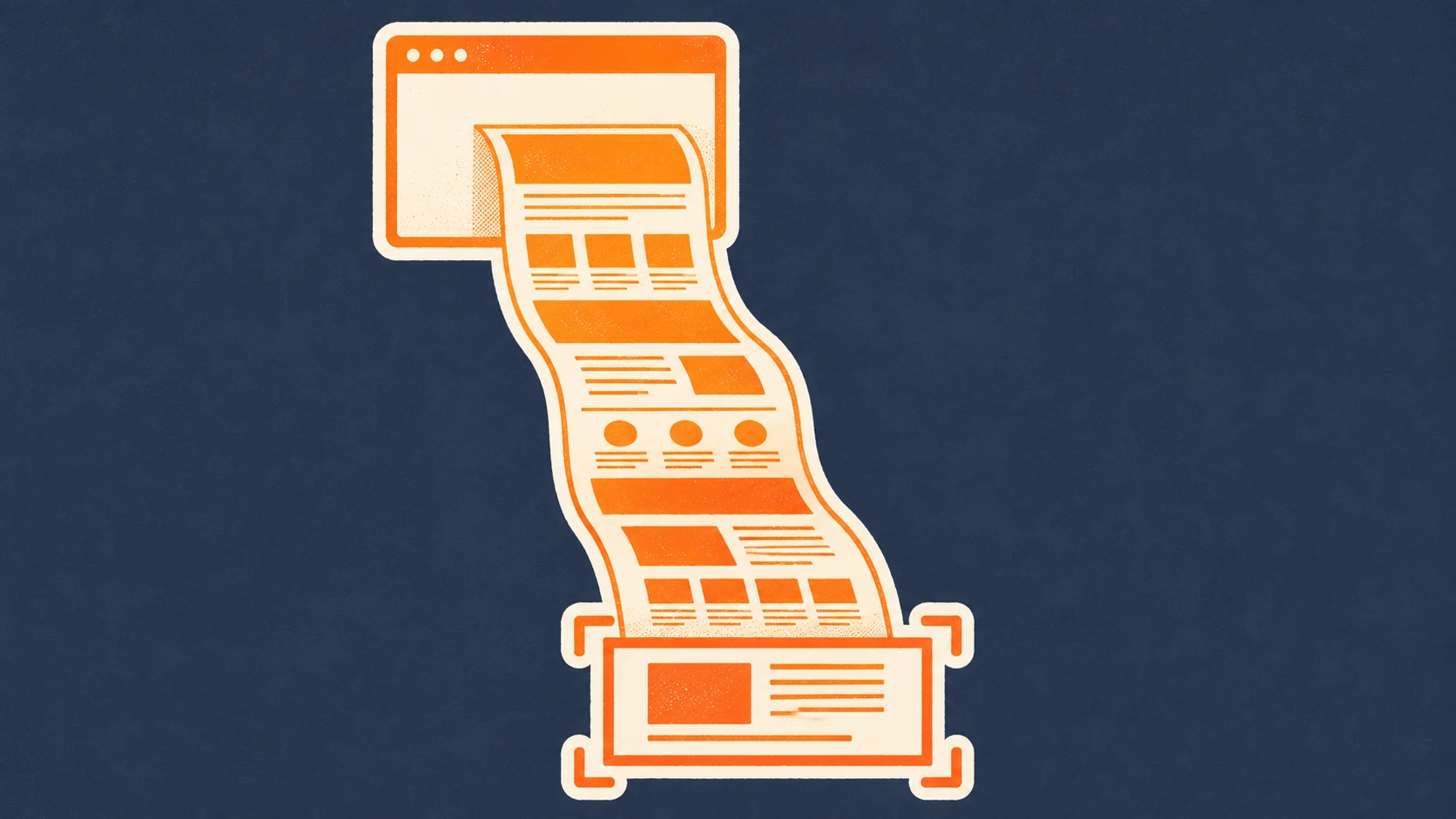
Taking a screenshot of a long web page sounds simple—until half the page is missing. A normal screenshot usually captures only what is on screen, so long articles, receipts, dashboards, and chat threads get cut off. Most desktop browsers have a built-in capture route for occasional use, although its name and location vary. If your browser supports Chrome extensions, an extension is faster for repeated captures and can also create clean PDFs, annotations, or recordings. Here are the best options for each job.
Use your browser's built-in capture tools for a one-off screenshot
Start with the built-in option when you only need an occasional capture and do not want to install an extension. Firefox exposes a Take Screenshot action, while Chrome, Edge, Brave, and other Chromium-based browsers offer a full-size screenshot command in Developer Tools.
- 1Look for your browser's built-in screenshot or capture command before installing anything.
- 2In Firefox, use Take Screenshot and choose Save full page.
- 3In Chrome-compatible browsers, open Developer Tools, open the command menu, and choose Capture full size screenshot.
- 4Save the image, then use an extension if you need the same workflow regularly or need another output format.
Built-in tools solve the occasional capture, but their menus vary and the workflow becomes tedious when you repeat it. Extensions are more useful when capture is routine or the output needs to be cleaned, edited, or recorded.
Capture full pages repeatedly without reopening browser menus
Repeated capture is less about whether a browser can create the image and more about speed, output control, and reliability on complicated pages. GoFullPage BETA keeps the workflow deliberately simple, while FireShot offers a more established tool with additional export and capture options in browsers that support Chrome extensions.
GoFullPage BETA
GoFullPage BETA is the most direct option for a job you repeat often: open a long page, capture all of it, and hand off the result. Its narrow scope is the advantage here—there is no recording workspace or document cleanup flow to configure before starting a capture.

- Users
- 200K
- Rating
- 4.9★
- Reviews
- 249
A toolbar click or shortcut starts the automatic scroll, then opens the assembled page in a result tab for PNG, JPEG, or PDF export. The listing also describes support for inner scroll areas and embedded frames, although extremely long pages can still be split into separate images.
- A toolbar action or keyboard shortcut replaces repeated browser-menu navigation.
- PNG, JPEG, and configurable PDF output cover the common handoff formats.
- The focused interface is easier to scan than a combined recording and editing suite.
Trade-offs
- This is the beta channel, intended to receive newer functionality first.
- Cropping and annotation are described as part of the premium editor.
- Pages beyond the browser's single-image limit may be divided into separate images.
FireShot
FireShot is better suited to work where the screenshot is only the first step. It can capture the whole page, the visible area, or a selection, then send the result to several local destinations. That flexibility matters when different jobs end in a file, the clipboard, a PDF, or a printout.

- Users
- 3M
- Rating
- 4.8★
- Reviews
- 52K
Compared with the deliberately minimal GoFullPage BETA workflow, FireShot offers more decisions after capture and has a much longer public product history. Common image and PDF exports are available in the core tool; additional editing and workflow features belong to FireShot Pro.
- Full-page, visible-area, and selection capture cover more than one screenshot workflow.
- Local PNG, JPEG, GIF, and PDF output provides more format choice.
- The Chrome listing is Featured and has more than fifty thousand ratings.
Trade-offs
- Advanced editing and automation features are reserved for FireShot Pro.
- Animation, nested frames, and custom selections can behave differently across sites.
- The broader option set adds more interface than a one-purpose capture tool.
Turn long web pages into clean, searchable PDFs
Articles, receipts, research sources, and AI conversations are usually more useful as readable documents than literal images. This task needs a tool that removes navigation and ads before creating the PDF while keeping the text easy to search and archive.
PrintFriendly
PrintFriendly is the better fit when preserving the words matters more than preserving every pixel. Instead of photographing navigation, ads, and other page furniture, it turns the useful content into a cleaner document for reading, searching, printing, or archiving.

- Users
- 1M
- Rating
- 4.6★
- Reviews
- 5.5K
Before creating the PDF, its reader-style preview lets you remove sections that do not belong in the final document. It can also create literal full-page screenshots, but that is secondary to its cleanup workflow.
- Removes ads and surrounding page clutter before printing or saving.
- Keeps text searchable and lets users remove unwanted sections before export.
- Supports PDF output as well as literal full-page screenshots.
Trade-offs
- Full-page conversion can behave differently on complex or highly interactive pages.
- Cleanup prioritizes readability rather than pixel-for-pixel fidelity.
- Advanced PDF editing features may require a paid plan.
Capture a page and explain what happens on screen
Bug reports, tutorials, and demonstrations sometimes need motion, narration, or annotation. A still full-page image cannot show a sequence of actions, so a combined screenshot and recording extension is the more practical choice.
Scrnli
Scrnli makes sense when the recipient needs to see both the final screen and the actions that led to it. Keeping screenshots, annotations, and recording together makes it easier to prepare a bug report, walkthrough, or short tutorial without switching between separate tools.

- Users
- 1M
- Rating
- 4.7★
- Reviews
- 10.9K
You can capture a full page or selected area, mark the important region, and record browser activity when a static image cannot explain the sequence. The broader workflow is useful for communication, but recording introduces more possible failure points than still-image capture alone.
- Combines full-page screenshots, selected-area capture, and recording.
- Annotation tools help turn captures into bug reports or visual explanations.
- The Chrome listing is Featured and has more than ten thousand ratings.
Trade-offs
- Recording reliability varies more than static screenshot capture.
- Audio, quality, and stop controls can behave differently across devices.
- It is broader than necessary when you only need an occasional image.
Compare the solutions
Need
One full-page PNG
- Recommendation
- Your browser's built-in capture tool
- Why
- It requires no extension installation, though the exact command varies by browser.
- Keep in mind
- Repeating the command is slower than using a toolbar action.
Need
Repeated one-click captures
- Recommendation
- GoFullPage BETA
- Why
- It focuses on one-click scrolling capture with straightforward PNG, JPEG, and PDF export.
- Keep in mind
- The current Chrome listing is a beta channel with a shorter independent history.
Need
More capture and export controls
- Recommendation
- FireShot
- Why
- It combines full-page capture with several local formats and a longer-running product history.
- Keep in mind
- Some editing and workflow controls belong to the paid Pro version.
Need
Clean, searchable PDFs
- Recommendation
- PrintFriendly
- Why
- It removes page clutter before creating a document for reading, printing, or archiving.
- Keep in mind
- Cleanup can change complex layouts instead of preserving every pixel.
Need
Screenshots plus screen recording
- Recommendation
- Scrnli
- Why
- It combines still capture, annotation, and screen recording in one extension.
- Keep in mind
- Recent comments show that recording reliability varies between users.
Store data comes from a daily crawl of the Chrome Web Store; rating trends are computed from the public review history. Recommendations are editorial judgements, last reviewed on , with store figures from .
Sources & verification
Product details and availability are checked against the official websites and Chrome Web Store listings listed below. These sources support factual product information; the recommendation itself is an editorial judgement.
- GoFullPage BETA — Chrome Web Store listing · Checked September 3, 2026
- GoFullPage BETA — Official website · Checked September 3, 2026
- FireShot — Chrome Web Store listing · Checked September 3, 2026
- FireShot — Official website · Checked September 3, 2026
- PrintFriendly — Chrome Web Store listing · Checked September 3, 2026
- PrintFriendly — Official website · Checked September 3, 2026
- Scrnli — Chrome Web Store listing · Checked September 3, 2026
- Scrnli — Official website · Checked September 3, 2026
Did this answer your question?